

Placing a Lab Order
As an ordering provider or staff with the appropriate credentials, you can place lab orders inside your practice's system on a screen that opens from the patient chart. If you have questions about accessing the lab ordering screen, contact your system administrator.
Initial Setup
Initially, there are two things your system administrator must set up before lab orders can be submitted.
- The labs you order from, so they appear in the Laboratory list
- The providers who place orders, so they can be selected as the Ordering Physician
Opening the Ordering Screen
Lab ordering uses your usual system credentials. The ordering screen opens from a patient's chart and loads that patient's demographic details, so the order stays tied to the patient you started from.
Note: On the ordering screen, verify the patient name is correct. If it is not the patient you expected, close the screen and start again from the correct chart. You cannot change the patient from inside the ordering screen.
To open the ordering screen
- In your practice's system, open the patient's chart.
- Select Order labs. Depending on your practice, the label and placement of this button may vary. If you can't find it, ask your system administrator where it sits.
- The ordering screen opens, already loaded with the patient's information.
Note: A sign-in prompt, a blank screen, or an error when the ordering screen opens is a technical problem rather than something you can fix. Note the time and the patient identifier, then contact your system administrator.
Moving Through the Order
You work through four stages.
- Choosing the lab
- Choosing the tests
- Filling in the order details
- Reviewing and submitting
You move between the screens with Continue and Back. Nothing reaches the lab until you select Submit on the final screen, so you can move back and forth freely until then.
Choosing the Lab
On the first screen you choose the lab that will collect and process the order. That choice affects how the order is sent, which account is billed, which tests are available on the next screen, and what the requisition looks like.
Notes:
- Choosing a lab determines where the order goes and which account is billed, not where the patient gets drawn. Nothing in the order tells the patient where to go, so send patients to the lab's own location finder or give them the sites your practice recommends.
- Quest is organized into regional business units, and each one is a separate connection with its own account. If your practice uses more than one Quest region, you will see more than one Quest entry. Pick the one your practice normally uses. LabCorp appears as a single entry, with regional accounts handled behind the scenes.
| Field | Required | What It Is and Why It Matters | If It Is Wrong |
|---|---|---|---|
| Laboratory list | Yes | The labs your practice is set up to order from, with the ones your practice uses most often first. The lab sets which tests are available on the next screen and which account the order bills against, and test codes differ between labs, so changing the lab later means rebuilding your test list | An order sent to the wrong lab is usually rejected or sits unworked, so use Back to correct it before submitting |
| Search box | No | A search across the labs available to your practice, and the only way to reach a lab your practice is set up for that is not shown by default | A lab that returns no results is not enabled for your practice, and your practice's system administrator can request it |
| Electronic connection indicator | Nothing for you to set, because it reports a status | A green E beside a lab, meaning the order reaches that lab electronically and is available at their collection sites straight away. An order to a lab without the indicator has to be faxed or printed and carried in, then handled by hand when the patient arrives | A lab you expect to be electronic showing no indicator is worth raising before you order, because ordering anyway creates a paper workflow your practice may not be set up for |
| Current Order | Nothing for you to set, because it reports your selections back to you | The running summary on the right of the screen, labeled Current Order, showing what you have selected so far and confirming your selection registered | A lab you selected that does not appear there means the selection did not take |
Choosing the Tests
On the second screen, you build the order. Your selections appear under Current Order on the right of the screen, and so do clinical questions for any test that requires them. You answer those before you can continue.
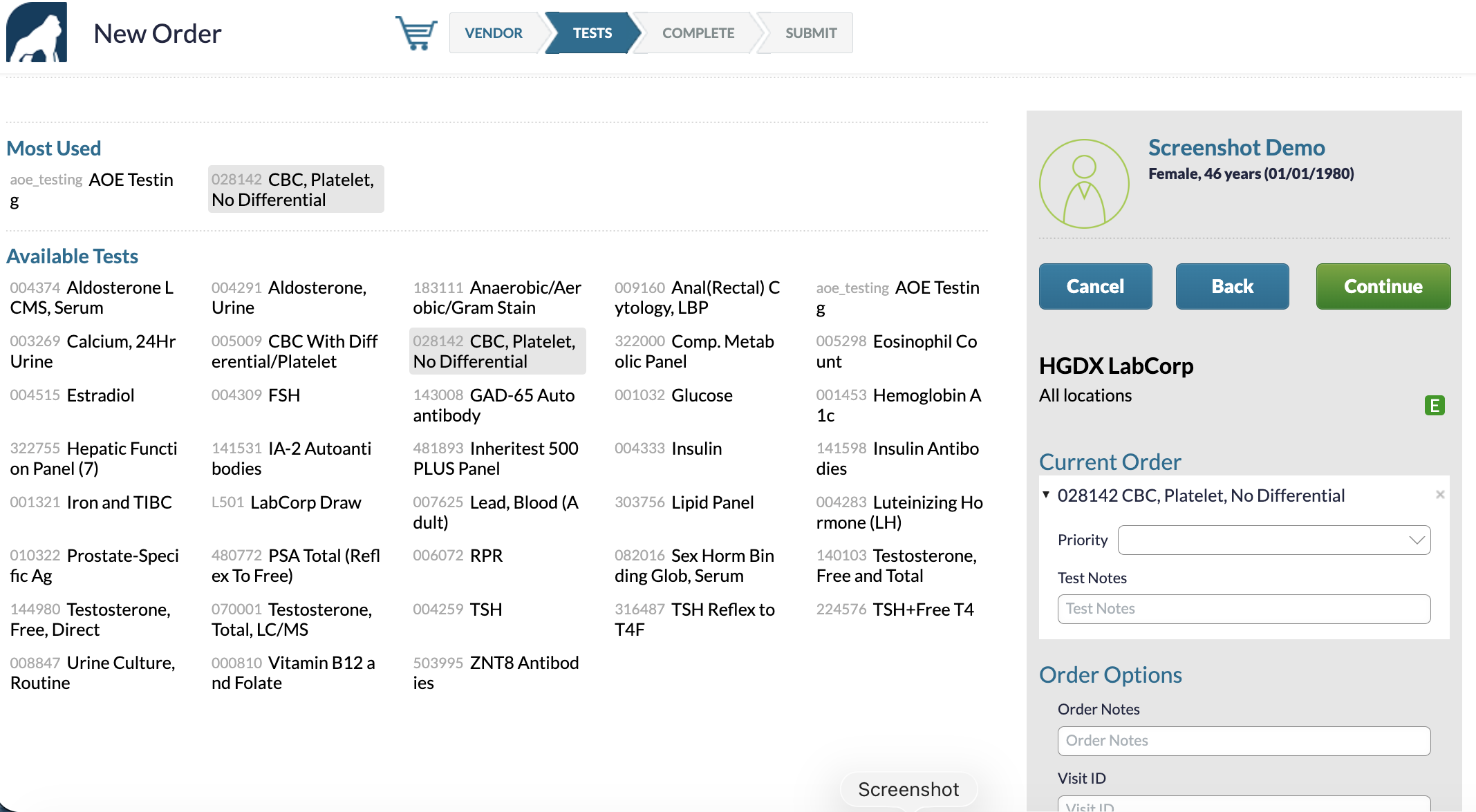
| Field | Required | What It Is and Why It Matters | If It Is Wrong |
|---|---|---|---|
| Test search and catalog | Yes, at least one test | The orderable tests for the lab you selected, searchable by name. Selecting from the catalog is what guarantees the test code is valid at that lab | A test you cannot find is either not offered by that lab or not enabled for your practice, so check your lab selection first |
| Most Used | No | The tests your practice orders most often. It saves searching for routine work, and it is built from your practice's ordering history rather than curated by anyone | Not applicable |
| Quick Orders | No | Named groups of tests saved by your practice, added to an order in one selection. They are the only way to repeat an order, because there is no reorder button and no order history to copy from, so a practice that orders the same panels regularly should build these early | You can create Quick Orders yourself, but renaming or deleting one is a request through your practice's system administrator, so name them carefully |
| Priority | No | An optional urgency flag, with Stat for urgent and Unscheduled when there is no urgency. Priority is sent to the lab and affects how the specimen is handled and how quickly results come back, and Stat may carry different handling or billing at the lab | Marking routine work Stat erodes the meaning of the flag, so follow your practice's guidance on when to use it |
| Test Notes | No | A free-text note attached to one specific test, carrying context the lab needs for that single test, such as a specimen source or a handling instruction | Free text is read by a person at the lab, if at all, so never use a note for something a real field exists for, such as a diagnosis or a collection time |
| Order Notes | No | A free-text note that applies to the whole order. The same as Test Notes, but at order level rather than for one test | Not applicable |
| Clinical questions | Yes, whenever they appear | Questions the lab requires for certain tests, such as fasting status or a last menstrual period date, also called Ask at Order Entry questions, appearing under Current Order only when a test you selected needs them. The lab cannot resolve or bill certain tests without these answers, and they are checked when the order reaches the lab | The order will not submit while a required question is blank, and an answer that is present but inaccurate is worse, because it can produce a result that cannot be interpreted |
Filling in the Order Details
The third screen is where billing and routing are decided, and it holds most of the required fields on the order. Required fields carry an asterisk, and a message in red appears when you select Continue if something required is missing, naming the fields to fix.
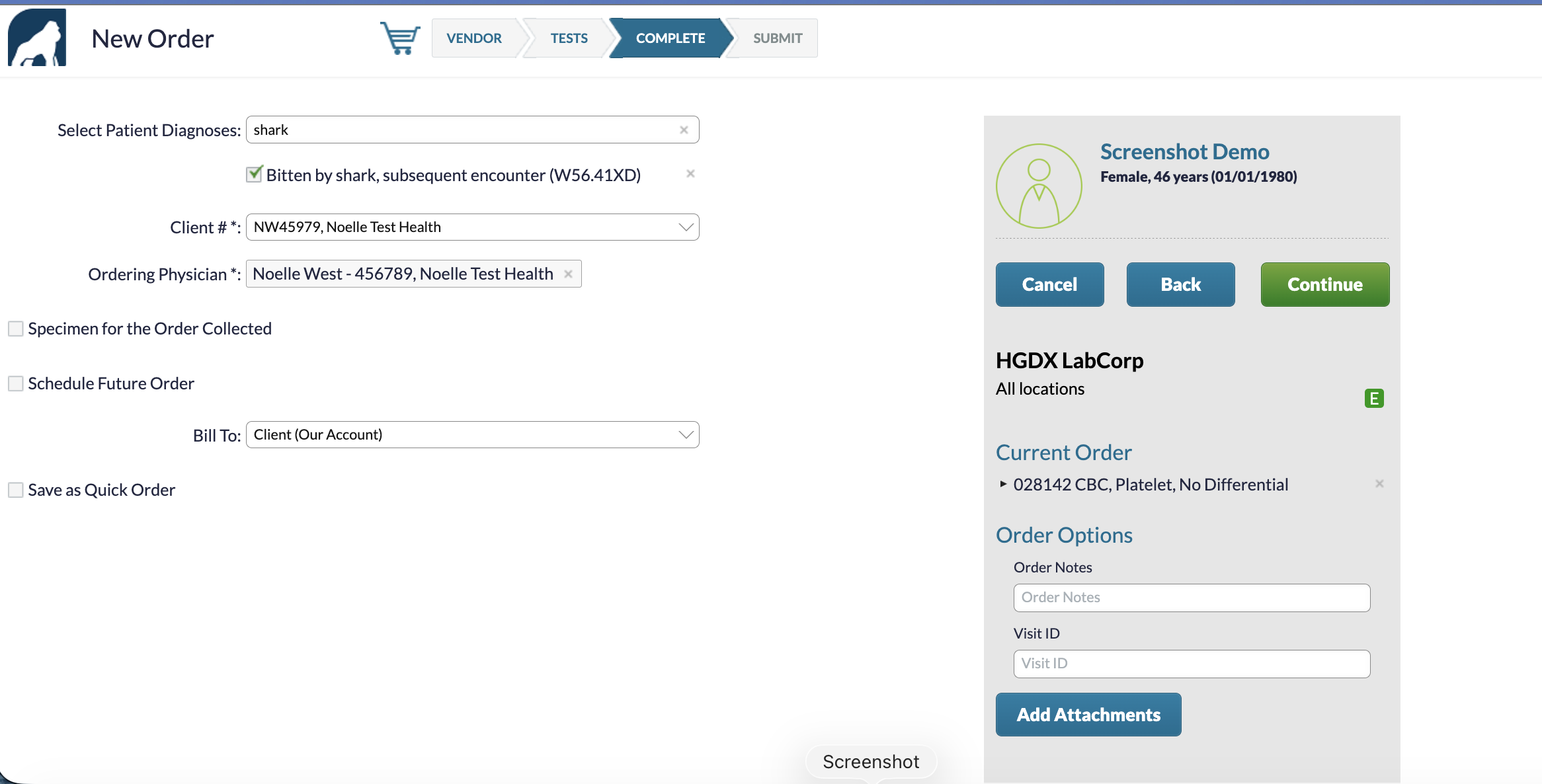
| Field | Required | What It Is and Why It Matters | If It Is Wrong |
|---|---|---|---|
| Diagnosis | Sometimes, and always when the order is billed to insurance, Medicare, or Medicaid, though some practices require it on every order | A lookup against International Classification of Diseases, 10th Revision codes, and you can add more than one. The diagnosis establishes medical necessity for the payer, and without it an insurance-billed order cannot be processed | An unsupported diagnosis produces no error on screen and instead produces a denial weeks later in billing, which is why it is worth getting right the first time |
| My Location | Yes | The practice location the order is being placed from. The location carries the lab account the order bills against, and it sets the practice address printed on the requisition, which the lab uses for result delivery and courier routing | An order placed under the wrong location bills the wrong account, and a location missing from the list has not been set up, which your practice's system administrator can request |
| Ordering Physician | Yes | The provider responsible for the order, which may already be filled in for you and, in some setups, locked so that it cannot be changed. It is one of the details used to route results back to the right patient, it is the provider the lab holds responsible for the order, and when required, it is the signature on the requisition | Results may fail to come back |
| Specimen for the Order Collected | No, though Time is required once the checkbox is selected | A checkbox saying the specimen was collected at your practice, and a Time field for the date and time of the draw, which appears once you select the checkbox. The checkbox decides whether the specimen travels to the lab with the order or the patient is sent to a draw site | The usual result is patients arriving at a draw site for orders the lab already thinks were collected, or collected specimens arriving against orders the lab is holding |
| Bill To | Yes | Who the lab invoices, with four choices. The other fields that become mandatory, the need for a diagnosis, and who gets the bill all follow from it, which makes it the field most likely to cause a billing problem later | The order goes through and nothing looks wrong, and the failure shows up later as a bill sent to the wrong party or a denied claim |
| Insurance details | Yes, when billing insurance | The payer, the policy number, and who is insured, prompted for when Bill To is set to Third Party. The lab submits the claim using exactly what is sent, and missing payer address or phone details are a routine cause of rejection | Existing insurance may be locked and changeable only in your system, depending on how your practice is configured, and you can still add insurance that is missing |
| Save as Quick Order | No | A checkbox that saves the test selection as a named Quick Order. It is how your practice builds up its repeat ordering library, and that matters more for lab ordering than elsewhere because there is no order history to copy from | Renaming or deleting a Quick Order needs a request through your practice's system administrator, so agree a naming convention before people start creating them |
Note: If a provider is missing from the list, or appears with no account number beside the name, the lab account setup is not finished. The order will not submit in that state and it cannot be corrected on the ordering screen, so contact your practice's system administrator.
For Specimen for the Order Collected, the checkbox decides the outcome and the time is a detail carried with it.
| Checkbox | What the Lab Receives | What Prints |
|---|---|---|
| Cleared | Order held for the patient to arrive at a draw site | Requisition with no collection line |
| Selected | Order marked as already collected, with the collection time you set | Requisition with the collection time, plus specimen labels |
If your practice drew the specimen, select the checkbox and set Time to when the draw actually happened. If the patient is going to a draw site, leave the checkbox clear.
Note: Time defaults to now and accepts a future value. A future time does not turn the order back into a hold, because the checkbox has already marked the specimen as collected, so correct it to the actual draw time rather than leaving a future value in place.
Each Bill To choice requires different information.
| Option | Who Is Billed | What It Requires |
|---|---|---|
| Client | Your practice, against the practice account | Nothing further |
| Patient | Patient directly | Patient address, city, state, ZIP code, and phone number |
| Guarantor | Responsible party other than the patient | Guarantor name, relationship, gender, date of birth, and contact details |
| Third Party | Insurance, including Medicare and Medicaid | Full insurance details including company address and phone, plus at least one diagnosis code |
Reviewing and Submitting
On the final screen, you review the requisition as it will appear for the lab. Nothing has been sent yet, so you can make corrections before choosing how it is sent.
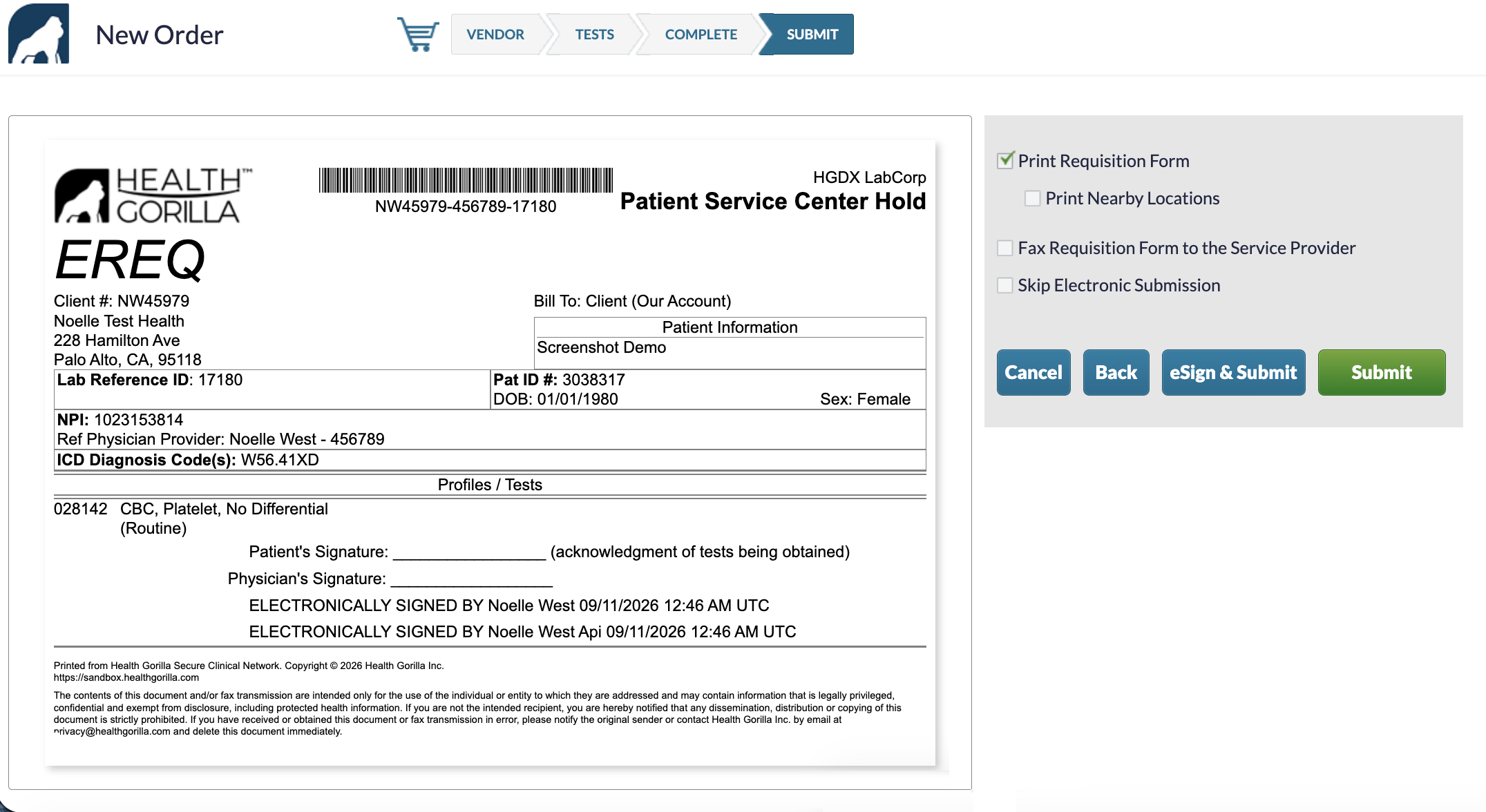
| Field | Required | What It Is and Why It Matters | If It Is Wrong |
|---|---|---|---|
| Requisition preview | Nothing for you to set, because it is review only | The completed order form as the lab will receive it. Every value being sent is visible there, and it is the last chance to catch an error | Use Back to correct it, because after submission corrections mean contacting the lab directly |
| Print Requisition Form | No | A checkbox to produce a printed requisition. Patients going to a draw site may be asked for paperwork, though an electronic order is already filed at the lab | Not applicable |
| Print Nearby Locations | No | A checkbox that adds nearby draw sites to the printed form. It is the only point at which draw site information reaches the patient from the order itself | Not applicable |
| Fax the requisition | No | A checkbox that faxes the requisition to the lab. A faxed order is handled by hand at the lab, pulled from a queue when the patient arrives, rather than filed directly into their system | Faxing on top of an electronic order can create a duplicate at the lab, so use it only when the lab has asked for it |
| Skip Electronic Submission | No | A checkbox that stops the order being sent electronically. It goes with the fax option, for when the requisition is reaching the lab on paper instead | Selecting it without arranging a fax or paper route means the lab never receives the order, and nothing on screen warns you, so leave it and the fax option clear unless your practice has told you otherwise |
| Submit | Yes, to place the order | The button that sends the order, shown as eSign & Submit when your practice uses electronic signature, which applies the provider signature at the same time. It is the point of no return, and the order is checked, sent to the lab, and you are returned to your practice's system | Not applicable |
| Back and Cancel | No | Back returns to the previous screen and keeps what you entered, and Cancel closes the order without sending it. No order list exists to return to a canceled order from, so treat a cancel as an order you will need to rebuild | Not applicable |
Note: If you are interrupted partway through, it is safer to complete and submit the order than to cancel it and plan to come back later.
After You Submit
When the order reaches the lab, it is checked for valid test codes and for the details the lab needs, including the account number, your practice address and phone, and answers to any clinical questions.
An accepted electronic order is in the lab's system straight away and available at its collection sites. A faxed order takes longer, because someone at the lab pulls it from a queue by hand when the patient arrives.
The Lab Reference ID
Your order is tracked by its Lab Reference ID. The lab returns that number with the results, so each result is matched back to the right order and the right patient.
It is also the number to quote if you need to ask about a specific order. Look for it in your practice's system rather than on the ordering screen, because the ordering screen closes when you submit and holds no record of the order afterwards.
Medicare orders
When an order billed to Medicare includes tests that may not be covered, an Advance Beneficiary Notice may be required. The notice is handled separately from the requisition, so follow your practice's existing process for it.
Where to Find Your Orders and Results
The ordering screen holds one patient and closes when the order is done, with no order list, no order history, and no results, so a submitted order is no longer visible there. The same is true for an order you scheduled for a future date.
Submitted orders and results both appear in your practice's system. Where they appear differs by system, so ask your practice's system administrator to show you the first time.
A completed result carries the lab, the date the results came back, the ordering provider, and every result value with its reference range and abnormal flags. You can usually print or save a copy. If the lab issues a corrected result later, it arrives the same way, is marked as corrected, and replaces the earlier one rather than appearing alongside it.
Notes:
- An order reads as completed only once the final result has been matched back to it, so a result can be available while the order still shows as in progress. Check the result itself before assuming anything is missing.
- Quick Orders are how you repeat an order, since there is no repeat order button and no previous order to copy from. If you order the same panel regularly, save it once and it is one selection every time after that.
Troubleshooting
Your practice's system administrator is the first stop for anything that needs fixing outside the ordering screen. Most problems are either a setup item or something specific to your system, and both are handled there first.
When you report one, include the patient identifier as your system shows it, the date and time, the lab you selected, and the Lab Reference ID if the order was submitted. Keep patient names, dates of birth, and other identifying details out of email and chat.
Many questions have an answer you can act on straight away.
| Issue | Resolution |
|---|---|
| The patient's name is wrong on the ordering screen | Close it without submitting and reopen from the correct patient's chart, because you cannot change the patient from inside the ordering screen |
| I was asked to choose between two patients | Your details matched more than one record. Pick the correct one, and mention it to your practice's system administrator if it keeps happening |
| The provider I need is not in the list | Their lab account setup is incomplete. Contact your practice's system administrator |
| The provider is there but has no account number | Same cause and same fix, and the order will not submit in that state |
| The order will not submit and there is red text | A required field is empty, and the message identifies the fields. Most commonly it is a diagnosis code or an unanswered clinical question |
| I cannot edit the patient's insurance | Insurance and demographics are edited in your practice's system, then flow into the order. You can still add insurance that is missing |
| The patient asks where to get drawn | Not something the order specifies. Use the lab's location finder or the sites your practice normally uses |
| I cannot find an order I scheduled for a future date | In your practice's system. Scheduled orders are not visible in the ordering screen after you submit |
| The patient arrived and the lab has no order | Check whether Skip Electronic Submission was selected, and whether the lab showed the green E. Contact your practice's system administrator with the Lab Reference ID |
| A result seems to be missing | Check the result itself rather than the order status. Orders often still read as in progress when results are already available |
Updated 20 days ago